Setting up a dual monitors productivity office work can completely transform your workflow, helping you save time, reduce unnecessary clicking, and maintain better focus.
Whether you are a freelancer, remote worker, content creator, gamer, or someone who juggles multiple windows at once, a well arranged dual screen setup can make your day smoother and more productive.
Why Dual Monitors Productivity Office Work Matter
Two screens mean less switching between tabs and more uninterrupted workflow. You can keep one screen for communication tools and the other for primary tasks. Or you can place your main workspace on one monitor and use the second screen for research, notes, or dashboards.
Some benefits you can expect
-
Better multitasking
-
More screen real estate
-
Easier comparing and referencing
-
Reduced eye strain when arranged correctly
-
Smoother video editing, coding, designing, writing
Choose the Right Monitors
Not all screens work the same. The best setup starts with choosing two displays that match your needs.
What to look for
-
Matching sizes help your eyes move naturally across both screens
-
Same resolution creates an even viewing experience
-
Thin bezels give a seamless extended view
-
Adjustable stands allow better ergonomics
-
IPS panels offer better color and viewing angles
If you already have two mismatched monitors, you can still pair them. Just make sure to align the top edges so your eyes travel in a straight line.
Position the Monitors for Comfort
Ergonomics play a huge role in preventing fatigue and discomfort. Even the best monitors will feel uncomfortable if placed incorrectly.
Guidelines for positioning
-
Keep the primary monitor directly in front of you
-
Place the secondary screen at an angle to the side
-
Maintain an arm’s length distance
-
Keep the top of the screen at or slightly below eye level
-
Tilt the screens slightly upward
If you use one monitor more often than the other, let that be the one centered in front of you and place the secondary monitor off to the left or right.
Adjust Your Desk Setup
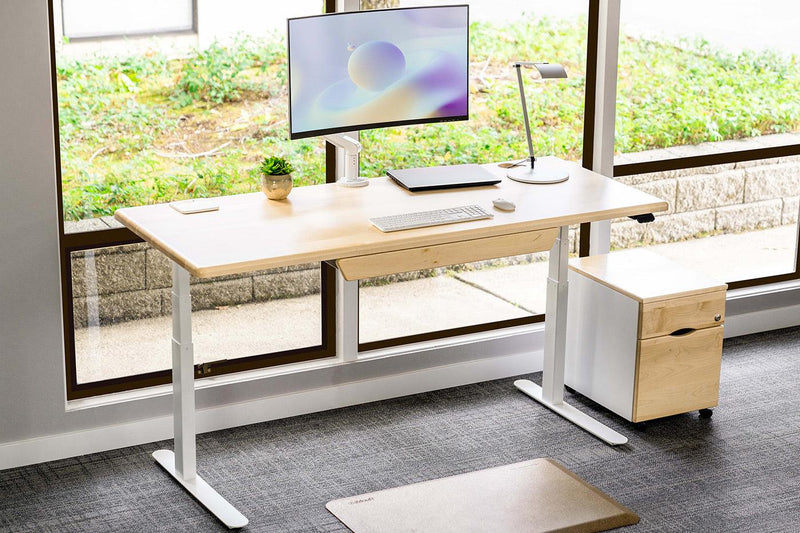
A dual monitors productivity office work layout needs stability and enough desk depth. This is where a strong, ergonomic desk makes a difference. If you want a setup that supports heavy screens, monitor arms, and a clean layout, you can upgrade to a highly stable standing desk from iMovR.
Their desks are built to handle multiple monitors without wobbling, and the height adjustability gives you better posture and comfort throughout the day.
Use Dual Monitor Arms
Monitor arms help you free up desk space, reduce clutter, and position both screens exactly where you want them. This prevents neck tilt, shoulder strain, and awkward viewing angles.
Benefits of monitor arms
-
Adjustable height and distance
-
Better alignment between monitors
-
Cleaner workspace
-
More room for keyboard and accessories
A stable standing desk paired with high quality monitor arms can turn your workspace into a professional, ergonomic setup with no effort. iMovR offers monitor arms designed specifically for dual screens, giving you smooth adjustability and long term stability.
Organize Your Cables
Two monitors mean double the cables. Keeping wires organized improves airflow and makes your workspace look clean.
Simple ways to manage cables
-
Use Velcro straps behind the desk
-
Run cables through monitor arm channels
-
Label each cable for easy troubleshooting
-
Use an under desk tray for power strips
-
Keep long cables coiled instead of hanging
Optimize System Settings
Once the physical setup is ready, adjust your computer settings for the best experience.
What to do
-
Set your primary display
-
Arrange the monitors in display settings so the cursor moves naturally
-
Match brightness and color temperature
-
Enable night light or blue light filters
-
Adjust scaling so text looks consistent
On Windows, go to Display Settings. On macOS, open System Settings then Displays.
Keep the Workspace Clean and Efficient
A dual monitor setup works best when your desk supports focus and clarity. Keep accessories simple and intentional.
Useful accessories
-
A wide mouse pad
-
A wireless keyboard and mouse
-
A desk lamp with adjustable brightness
-
A vertical laptop stand if you use one
-
An ergonomic chair or standing desk mat
If you want to elevate your setup, explore iMovR’s selection of ergonomic accessories. From anti fatigue mats to monitor arms and sit stand desks, they help you build a workspace that supports long hours without discomfort.
Tips for a Smooth Dual Monitor Experience
Before you settle into your new dual monitors productivity office work setup, here are a few last things to keep in mind.
-
Keep both screens at the same brightness
-
Avoid placing the monitors in front of windows
-
Maintain a proper chair and desk height
-
Take short breaks to reduce eye strain
-
Adjust settings as you work until it feels natural
Upgrading your workstation is one of the easiest ways to boost your productivity and comfort.
If you want reliable, ergonomic furniture that supports dual monitor setups, explore iMovR’s workspace accessories to build the ideal environment for long hours of focused work.