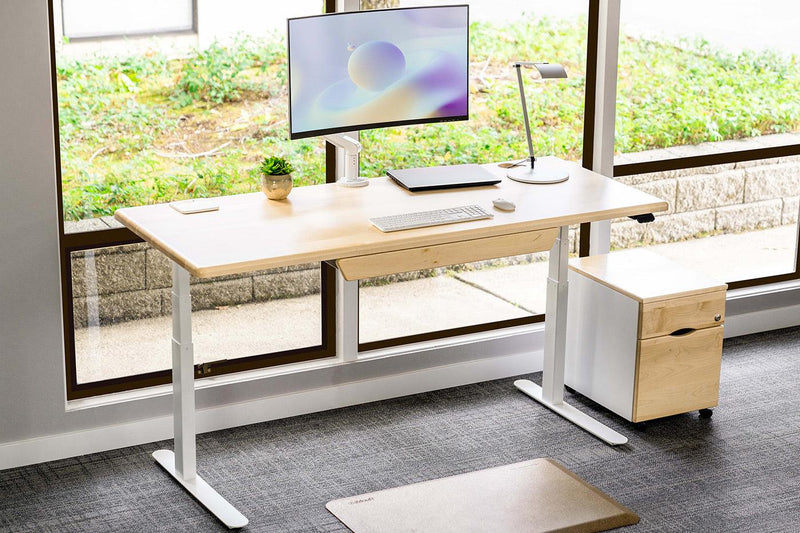
What if your 9-5 desk wasn’t just a place to sit, but a tool that actively supported your body?
Many office workers spend over 8 hours at a desk. Still get avoidable aches and fatigue.
This post gives you clear advice on the best standing desk accessories to build an ergonomic setup. Your workspace should work for you, not against you.
What Are Standing Desk Accessories
Standing desk accessories mean all the extras that turn a basic desk into a setup that actually works for your body.
The desk matters. The chair matters. But accessories let you fine-tune everything to fit your body and how you work.
Research shows better ergonomic design improves comfort and reduces muscle strain. It can even boost productivity.
Think of accessories as the fit layer on top of your desk. A monitor arm sets your screen exactly at eye level. An anti-fatigue mat makes standing easier on your feet.
These tools help office workers who switch between sitting and standing. Or people who type for hours. Or anyone doing lots of screen work.
This article covers which accessories matter most. How to pick them. And how to work them into your daily routine.
Monitor Mounts: Achieving Ergonomic Precision
Why it matters: Getting your screen at exactly the right position prevents neck strain, keeps your posture upright, and clears desk surface for smoother movement.
According to the Mayo Clinic you should place the top of the monitor at or slightly below eye level and about an arm’s length away.
How to choose:
-
Check VESA compatibility (e.g., 75×75 mm or 100×100 mm)
-
Ensure the mount can handle your monitor’s weight and size
-
Decide: single vs dual monitor arms, dual useful if you frequently multitask
-
Look for tilt, swivel and rotate (so you can switch between landscape and portrait)
-
Cable management built into arm = bonus
Pro tip: Set the top of screen about 2–3 cm below your eye line when sitting upright, and pull the monitor about 50-75 cm away (about one arm’s length). The tension of the arm should hold the screen steady — if it sags or drifts you’ll find yourself constantly repositioning (which kills productivity).
Under-Desk Keyboard and Mouse Platforms: Streamlined Workspace
Why it matters: Your hands rest on keyboard and mouse for hours. Bad angles wreck wrists, elbows, shoulders. Keep wrists and forearms straight.
Tuck upper arms against your sides. Place hands at elbow level or a touch lower. Small changes stop big pain.
How to choose:
-
Adjustability: height and tilt (so you can find your neutral wrist angle)
-
Width of mouse surface: enough room to move without constraint
-
Material and wrist support: gel or low-profile wrist rests help maintain comfort
-
Mechanism: full-extension tray or slide-out platform makes switching between sitting/standing easier
Pro tip: Consider a negative tilt (keyboard front lower than the back) to reduce wrist extension (i.e., bending the wrist upward). It’s subtle, but over long typing sessions it helps. Also, position mouse and keyboard close to avoid reaching.
Active Seating Options: Encouraging Dynamic Movement
Why it matters: Sitting all day is still a major risk, micro-movements and posture shifts help reduce stiffness, increase circulation, and keep you more alert.
Ergonomic research shows setups that encourage movement are better than static “perfect posture” alone.
How to choose:
-
Wobble stools or “active” seats: allow gentle rocking or tilt
-
Perch chairs: higher seat, lean-forward posture, good when alternating sit/stand
-
Balance boards (for standing parts): engages legs and core
-
Check height-range (so it's compatible with your desk), base stability (so you feel safe), and whether it fits under/around your desk when you switch modes
Pro tip: Use a rhythm of 30–60 minute blocks: sit, perch, stand, maybe wobble. Alternating keeps your body engaged. And don’t worry about “perfect stillness,” movement is your friend.
Anti-Fatigue Mats: Reducing Physical Stress
Why it matters: Long hours at a standing desk tire feet, legs, lower back. An anti-fatigue mat softens every step.
It nudges tiny shifts in weight. Blood flows. Joints relax. You last the full shift without the ache.
How to choose:
-
High-density foam (not super soft) so you sink just enough
-
Bevelled edges (so you don’t trip)
-
Non-slip base (safety first)
-
Textured or topo-style surface (encourages slight foot movement)
Pro tip: Use varied stances: stand normally, shift weight side to side, maybe step back occasionally. Mats with contours let you subtly flex calves and feet. Over time your standing time increases (and your body thanks you).
Comfortable Footwear: Supporting All-Day Standing
Why it matters: If you’re standing part of your day, your feet are literally carrying the load. Poor footwear = arch fatigue + lower-back pain + discomfort that distracts you. Even with the best stand up desk accessorie, bad shoes undo the benefit.
How to choose:
-
Good cushioning underfoot
-
Proper arch support
-
Roomy toe box (for natural toe splay)
-
Consider removable insoles (for custom support)
-
Keep a dedicated “desk pair” to avoid daily wear/wear-out
Pro tip: Keep a clean pair of shoes just for your workspace, they stay fresh, fit well, and you’re less likely to compromise on support when you’re tired.
Treadmill and Elliptical Accessories: Bridging Work and Fitness
Why it matters: This one’s for the ambitious. Light motion while working (typing, reading) can boost energy, cognition and circulation without turning your workspace into a gym. Ergonomic planning recommends changing posture/motion rather than staying static.
How to choose:
-
Quiet motor (so calls and video-meetings aren’t disrupted)
-
Stable handrails (for safe support)
-
Speed range that allows typing (~1–2 km/h) and higher movement for non-typing tasks
-
Safety key (so you stop immediately if needed)
Pro tip: Start slow: set the speed to ~1–2 km/h when typing. Then bump up speed during calls or reading when you’re less input-heavy. Your body gets movement, you stay productive.
Wrist Rests and Foam Rollers: Enhancing Comfort
Why it matters: It is a “small” standing desk accessory but they matter, micro-adjustments of wrist angle and short breaks with foam rollers can reduce strain and improve recovery.
Ergonomics research emphasizes micro-breaks and proper wrist alignment.
How to choose:
-
Keyboard and mouse: Grab low-profile gel or memory-foam wrist rests. Palms sit supported. Wrists stay neutral.
-
Recovery: Firm foam rollers target calves, upper back, hips. Roll during two-minute breaks. Tension melts fast.
Pro move: Rest your palm on the pad. Keep the wrist joint free. Same with rollers. Hit upper back or calves in short bursts. Feel the release.
LED Desk Lamp: Illumination for Productivity
Why it matters: You might focus on furniture and input devices, but lighting is an ergonomic accessory too. Poor lighting = eye strain, headaches, skewed posture (you lean forward). Good illumination supports focus and comfort.
How to choose:
-
Adjustable brightness and colour temperature (2700K–5000K)
-
Flexible arm and head so you can angle light where needed
-
Glare-free design to avoid reflections on monitors
-
Prefer lamp placed opposite your dominant hand (so fewer shadows when writing or interacting)
Pro tip: If you’re right-handed, place the lamp on your left so your hand doesn’t cast shadows over your workspace, and vice versa.
USB-C/Thunderbolt Docking Station: Efficient Electronics Management
Why it matters: Cluttered cables, multiple plugs and disorganised peripherals disturb flow and posture (you lean, twist, bunch cords). A docking station lets you plug in once, retract cables, and keep your workspace clean and flexible.
How to choose:
-
Power delivery wattage (so your laptop remains fully charged)
-
Number of display outputs (for dual/tri monitors)
-
Data transfer rates (especially if you are using external GPUs or large files)
-
Extra ports: SD card reader, Ethernet, USB-C/USB-A mix
-
Form factor: smaller is better if you want it tucked under the desk
Pro tip: Mount the dock under your desk or to the side. Keep cables short, labelled, and create a “loop” of slack if you have a standing desk (so cables don’t tug when the desk moves).
Cable Management Kits: Maintaining a Tidy Space
Why it matters: Tiny but powerful: when your cables get in the way, they trip you up, literally. When you switch between sitting and standing, poorly managed cords disrupt the flow, can cause tugging on your gear, and can distract you. A tidy setup supports the ergonomic accessories for standing desk above.
How to choose:
-
Under-desk trays (to hold power bricks and hubs)
-
Adhesive clips (for routing cables neatly)
-
Velcro ties or zip sleeves (for bundling cables)
-
Desk grommets (for clean entry/exit points)
Pro tip: When you set up your standing desk movement, leave a small loop of slack in the cable at the highest position. That “moving loop” absorbs motion and prevents cables from winning the tug-of-war with your monitor arm or laptop stand.
Conclusion
Stand. Sit. Type. Read. Swivel. Every move feels better with the right gear. Monitor arms lift screens to eye level.
Keyboard trays drop input to elbow height. Anti-fatigue mats cradle your feet. Cable sleeves banish the tangle.
Stack these pieces. Your 9-to-5 turns smooth. Body stays loose. Focus stays locked.
The real takeaway? Your workspace should support you. Make one change this week, maybe swap your keyboard tray or add a foot-rest: your body will thank you tomorrow.
Visit or contact iMovR’s Standing Desk Accessories to start customizing your workspace today.
FAQs
What accessories do I need for my standing desk?
You’ll want monitor mounts, ergonomic keyboard/mouse trays, anti-fatigue mats, cable management systems and maybe a docking station or lighting upgrade. These accessories help turn your desk into a full ergonomic workstation rather than just a raised tabletop.
How stable are the standing desks?
Stability depends on the frame design, motor type and how much weight you place on it, many electric standing desks support 150-300 lbs (68-136 kg) of load. If you exceed the capacity or have a narrow base and heavy top position, wobble and instability may occur.
Can I attach a keyboard tray or floor mat?
Yes, a quality standing desk setup allows for under-desk keyboard trays and floor mats (anti-fatigue mats) as accessories. The key is to ensure the mounting/tray hardware is compatible with your frame and that the floor mat stays in place when you change heights.
What is the total desk weight?
The “total desk weight” usually means how much load your standing desk frame and motor can support safely, many standard desks hold 100-140 kg (220-310 lbs) including desktop and accessories. So you should sum up your desktop, monitors, accessories, and leave margin for safe operation.
How do I maintain my standing desk?
Periodically check screws and bolts for tightness, ensure the motor and lift mechanisms operate smoothly, and clean any dust or debris from moving parts. Also, avoid exceeding the specified load, keep cables organized, and follow the manufacturer’s lubrication or service guidelines if provided.
How much lift do I need in my standing desk?
You’ll want a lift range sufficient to accommodate your seated height and your full standing height plus some clearance, typically desks that go from ~60-70 cm (24-28″) up to ~120-130 cm (48-52″) suit most 9-5 office workers. It ensures that when you stand you’re at the correct height relative to your monitor and keyboard to maintain ergonomics.