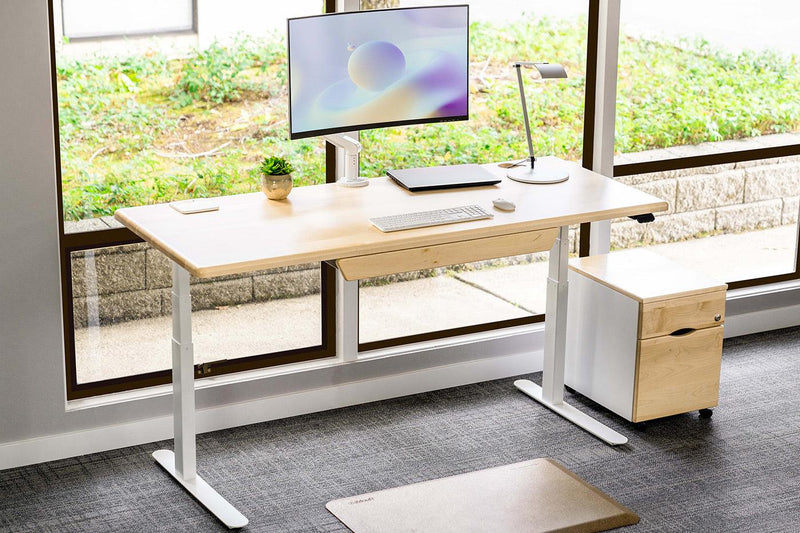
Standing burns up to 2x more calories than sitting, small shift, big impact.
But if your dual monitor setup is wrong, that standing time just trades back pain for neck strain. Most online ergonomic guides tell you to "center your monitors at eye level" and stop there, which is incomplete at best and actively harmful at worst.
By the end of this guide, you will know the exact desk size, arm type, monitor angle, and standing calibration that makes a standing desk for two monitors actually work.
The Ideal Dual Monitor Setup Starts with Desk Size, Not Monitors
Desk size is the first decision in any dual monitor standing desk build. Get it wrong and every other adjustment becomes a compromise.
Minimum Desk Width for Dual Monitors
Two 24-inch monitors need a minimum of 48 inches of desk width. Two 27-inch monitors need at least 60 inches, and ideally 72 inches when paired with a monitor arm.
Squeezing dual 27s onto a 48-inch wide desk for monitors forces the screens outward, which creates constant neck rotation and early fatigue before lunch.
Depth Matters More Than You Think
Shallow desks are a hidden posture trap that most buyers ignore. A depth of less than 24 inches pushes monitors too close, forcing you to tilt your head back just to see the full screen.
The ideal depth for a dual monitor standing desk is 30 inches, which lands you in the correct 20 to 30 inch viewing window without sacrificing keyboard or mouse space.
When You Actually Need a Wider Top
If you run dual 27-inch monitors plus a docking station and speakers, go 72 inches wide. For dual 24-inch setups with clean routing, 60 inches is enough.
Wider is not always better if it means your arms stretch outward to reach the keyboard, which is a fast track to shoulder fatigue.
Side-by-Side vs Stacked Monitors: Choose Based on Your Work
The right layout depends entirely on your workflow, not personal preference or what looks good in a desk tour video.
Side-by-Side Setup (Best for Writing, Coding, General Work)
Side-by-side is the standard for most knowledge workers using a dual monitor standing desk. The primary screen sits directly in front, and the secondary sits at a 15 to 30 degree inward angle.
This works because your eyes scan horizontally, which is the natural and lowest-effort motion for reading and writing tasks.
Stacked Setup (Best for Traders, Editors, Vertical Workflows)
Stacked monitors work when you need to monitor live data feeds or timelines on a secondary screen while keeping your primary workflow uninterrupted.
The bottom screen sits at eye level, the top screen slightly above it. This layout requires a dual monitor arm, not a stand.
Decision Table: Which Layout Fits Your Work?
|
Work Type |
Best Layout |
Reason |
|
Writing / Coding |
Side-by-side |
Horizontal scanning is natural |
|
Video Editing |
Stacked |
Timeline below, preview above |
|
Trading |
Stacked |
Monitor feeds without head rotation |
|
Design / Reference Work |
Side-by-side |
Wide canvas comparison |
Angled vs Flat Alignment
Flat alignment (both screens parallel to each other) is the most common mistake in a dual monitor arm setup.
It creates a visual dead zone between the screens and forces your neck to rotate further to read the secondary screen. Angle both screens inward at roughly 15 degrees, centered on your natural eye position.
Monitor Arms vs Stands: The Real Reason Your Setup Feels Off
Default monitor stands are the single biggest limiter in any wide desk for monitors configuration. They fix your screen at one height, one depth, and one angle. That is fine for a static desk. It is not fine for a standing desk for two monitors that moves between sitting and standing positions throughout the day.
Gas Spring vs Static Arms
Gas spring arms hold any position with one hand and no tools. Static arms require a screwdriver every time you adjust. For a sit-stand desk, gas spring is the only practical option.
In our experience setting up workstations for remote workers, users who switch to gas spring dual monitor arms actually use the standing mode daily, instead of leaving the desk locked at sitting height permanently.
Why Monitor Arms Fix More Than Just Space
A dual monitor arm removes the stand base entirely, which frees up 6 to 8 inches of desk depth per screen. That is recovered space you can use to push monitors further back and hit the correct viewing distance.
The monitor arm setup also lets you adjust each screen independently for eye level, which becomes critical when switching between sitting and standing.
The iMovR dual monitor arms are built specifically for sit-stand use, with a range of motion that covers both sitting and standing eye levels without disassembly.
ZipView Unison Dual Monitor Arm
$395
Move both monitors together with perfect precision. The integrated handle keeps your screens aligned as you adjust height or position—so your setup stays clean, balanced, and strain-free.
Support
Dual monitors
Adjustment
Synchronized movement
Control
Integrated handle
Mount
Clamp + grommet
Perfect Monitor Positioning (With Exact Measurements)
Monitor height ergonomics is not a single fixed number. It changes depending on whether you are sitting or standing, which is the detail that most guides skip entirely.
Ideal Eye Level for Primary and Secondary Monitors
When sitting, the top of your primary monitor should align with your eye level. When standing, that position shifts up by 2 to 3 inches because your posture opens and your natural gaze rises slightly.
Most people set monitor height once for sitting and never touch it again, which is exactly how neck strain develops on a standing desk for two monitors over weeks of use.
Exact Viewing Distance
Keep monitors between 20 and 30 inches from your eyes. Closer than 20 inches causes eye strain.
Further than 30 inches forces you to lean forward, which collapses your posture regardless of how ergonomic your chair is.
Monitor Tilt and Angle
Tilt your monitors 10 to 20 degrees back, with the top edge slightly further from your face than the bottom.
This reduces glare from overhead lighting and keeps your gaze naturally level rather than looking up into the screen.
Sitting vs Standing: Why Your Setup Should Change (But Most Do Not)
Switch to a height-adjustable desk and cut sitting time by over an hour daily. But that benefit disappears entirely if your monitors stay fixed while your desk moves up and down.
What Changes When You Stand
Your eye level rises, your arm angle shifts, and your natural head position tilts slightly forward. A dual monitor standing desk that accounts for this needs arms adjustable vertically without tools.
Fixed stands on a sit-stand desk are a direct contradiction, like installing cruise control on a race track.
Why Fixed Setups Fail on Sit-Stand Desks
When your desk raises 10 to 12 inches from sitting to standing height, your monitor arms need to compensate.
If they do not, you end up looking slightly downward when standing, which rounds your upper back and eliminates most of the posture benefit the standing desk was supposed to provide.
How to Adjust Monitors in Seconds When Switching
Set two desk height presets, one for sitting and one for standing. Then calibrate your arm height once for each position and lock them.
The transition between positions should take under five seconds. If it takes longer or requires tools, the setup will not get used consistently, and you will drift back to sitting all day.
Cable Management for Dual Monitors
Clutter is not just an aesthetic issue on a wide desk for monitors. Visual noise in your peripheral field creates low-level cognitive friction that compounds across hours of work.
A monitor arm setup with built-in cable routing channels eliminates this problem entirely. Thread display cables, USB, and power through the arm spine and route them to a cable tray mounted underneath the desk surface.
The minimal cable management checklist: one cable tray under the desk, cables routed through monitor arm channels, a single power strip fixed to the desk underside, and no cables hanging vertically in your sightline.


7 Common Dual Monitor Setup Mistakes (And How to Fix Them)
-
Monitors too high, causing forward head posture
-
Screens too far apart, forcing constant neck rotation
-
Desk depth too shallow for correct viewing distance
-
No monitor arms on a sit-stand desk
-
Both screens flat instead of angled 15 degrees inward
-
Static monitor position that does not change when standing
-
Secondary screen treated as equal to primary instead of slightly lower and angled
What to Look for in a Standing Desk for Dual Monitors
Stability at standing height is the first filter for any standing desk for two monitors. A dual monitor arm setup adds 20 to 30 pounds of load at extended reach.
A desk that wobbles at 45 inches of height will shake with every keystroke, which is distracting and shortens the lifespan of both the desk frame and your monitors.
Look for a frame rated for at least 200 lbs with a crossbar reinforcement between the legs.
Desk Size and Upgrade Flexibility
A desk you buy today should accommodate your monitor setup three years from now. That means a 60 to 72 inch top surface, cable grommets for routing, and a frame that accepts third-party arm clamps.
Narrow desks lock you into the setup you start with, which limits your ability to upgrade monitors or change layouts without replacing the entire desk.
Recommended Setup Built for Dual Monitors
The iMovR P1 ELITE is a wide desktop standing desk for two monitors available from 48 to 72 inches wide, which covers every dual monitor configuration from 24-inch pairs to dual 27-inch setups with full arm clearance.
P1 Elite+ Standing Desk (Solid Wood)
$1,695+
A workstation built to last decades. Solid wood butcher block meets a high-performance lift system—giving you unmatched durability, natural aesthetics, and smooth, powerful sit-stand control.
Desktop
Solid wood butcher block
Capacity
360 lbs
Speed
3.15"/sec lift
Motors
Dual ultra-quiet
The frame is stable at standing height and rated for the weight capacity a monitor arm setup requires.
For freelancers and remote workers, the combination of a 60-inch P1 ELITE with iMovR gas spring dual monitor arms is the cleanest starting point.
This standing desk for architects and CAD engineers handles the weight, the width, and the sitting-to-standing transition without a cable management overhaul every time you move.
Quick Setup Checklist (Get It Right in 10 Minutes)
-
Desk width: 60 inches minimum for dual 27-inch monitors
-
Monitor angle: 15 degrees inward on both screens
-
Eye level: top of screen at eye level sitting, 2 to 3 inches higher when standing
-
Viewing distance: 20 to 30 inches from eyes to screen
-
Arms: gas spring dual arm, calibrated separately for sitting and standing height presets
-
Cables: routed through arm spine, secured to underdesk tray
A Proper Setup Pays Off Every Hour You Work
The difference between a setup that works and one that just looks good comes down to the transitions.
A dual monitor standing desk that adjusts for posture changes, not just desk height, is what actually reduces strain over thousands of hours at your desk. Every measurement in this guide compounds daily, and skipping one usually cancels out the benefit of getting the others right.
Start with the desk size, set your arm height for both positions, and angle the screens inward. That is the whole setup.
If you are ready to build a standing desk for two monitors the right way, explore the wide desktop options and dual monitor arm configurations at iMovR built specifically for this use case.